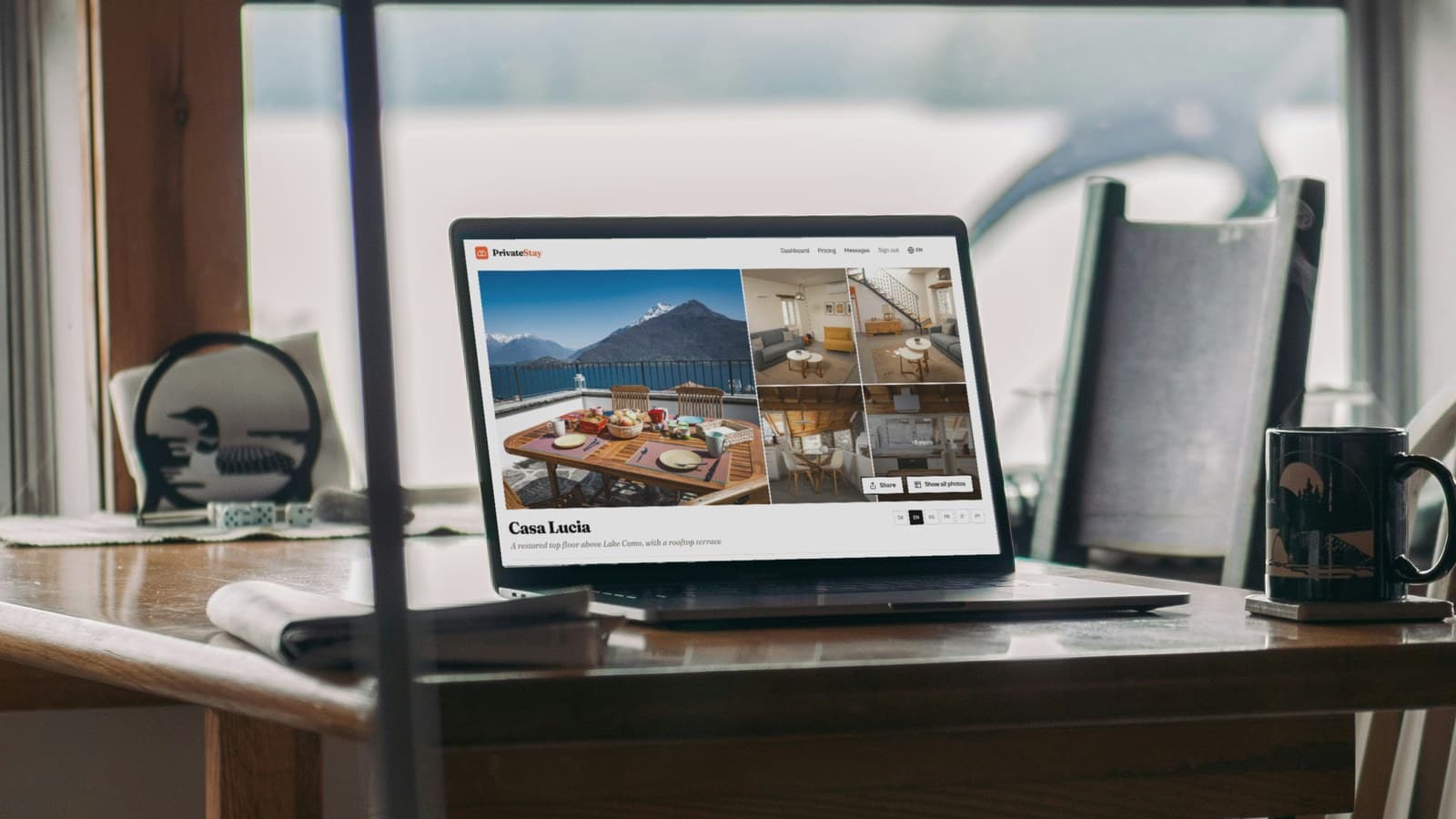
You can build a private direct booking page for your vacation rental in about twenty minutes, on a free account, and you don't need a website or a developer. I recorded the whole thing so you can watch me do it, and I've written every step out below in case you'd rather skim.
The property in the video is a demo apartment on Lake Como. The chapters under the player jump straight to each step.
Chapters
What to have ready before you start
Let me be upfront about the twenty minutes. I could go that fast because I had everything in a document and just copied it across. If your place is already on Airbnb or Vrbo, you're in the same spot: open your listing in another tab and most of the work is already done.
Here's what you'll want handy:
- your photos, with your favorite picked out for the cover
- a headline and a short line underneath it
- a paragraph or two about the place
- the type of property, how many people it sleeps, and your check-in and checkout times
- your nightly price, and a minimum stay if you have one
- your house rules and cancellation terms
- answers to the questions every guest asks: parking, the nearest airport, arriving late
- a photo of yourself and a line about who you are
It sounds like a small thing, but it makes a real difference. Half the owners who finished our setup wizard did it in under 16 minutes. And the ones who gave up? Most of them stopped on the very first screen, the one that asks for a headline. Staring at an empty box is surprisingly hard. Copying from a listing you wrote years ago is easy.
Step 1: create your account and decide who can join
Jump to 0:26 for the account and 1:35 for the property.
You sign up with your name, email and a password, confirm your email, and then it asks you three things about the property: its name, its link, and who's allowed in.
The link is your page's address, something like privatestay.club/p/casa-lerici. You can't change it later, so pick something short that you'd be happy to say out loud to a friend over dinner.
Then comes the question I'd actually spend a minute on. Your page is private, so when someone opens your link they ask to join first, and they tell you how they know you. What happens next is up to you.
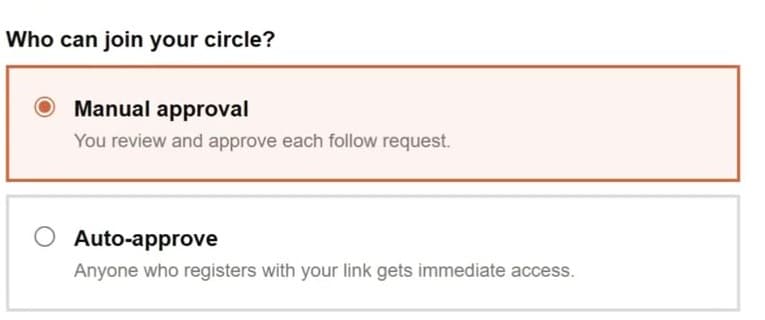
- Manual approval: you see every request and approve it yourself.
- Auto-approve: anyone who signs up through your link gets in straight away.
For our own flat we only ever use manual approval. You never know who's going to ask. It might be a friend of a friend you don't particularly like, and with manual approval you're the one who decides. If you don't mind, and you're happy for friends of friends to see the place as soon as they sign up, auto works great. Most owners seem to feel the way we do, though: about four in five properties on PrivateStay are on manual. There's more on handling requests in managing access requests.
Step 2: headline, photos and the story of the place
Jump to 2:27.
This is the fun part. Your headline and subheadline are the first thing people see, so just say what the place is. Mine were "Lake Como penthouse with a private rooftop terrace" and "Sleeps two. Rooftop terrace, lake and mountain views." Nothing clever needed.
Put your best photo in as the cover, then upload the rest. Take a minute to label them by room (bedroom, kitchen, terrace and so on), because the labels turn your photos into a little tour of the house instead of a random pile. The free plan takes up to ten gallery photos, which is plenty for most places.
Then write a few lines about what it's like to stay there. Or paste them, if you already wrote them for Airbnb.
Step 3: the details guests decide on
Jump to 3:56.
Now the practical stuff: the type of property, how many guests, the town, and your check-in and checkout times. Then tick the amenities you have. Kitchen, Wi-Fi, washer, air conditioning, parking, a hot tub if you're lucky.
Then your price per night, in US dollars, euros or British pounds. Guests see that price with a total for their dates, and they pay you directly, so nobody takes a cut. You add your payment details once, and we send them to each guest when you approve their booking (payment setup).
Step 4: house rules, cancellation terms and FAQs
Jump to 5:21.
Your cancellation policy, your house rules (no smoking, no parties, all of that), and then the FAQs. My tip here: think about the messages you end up writing every single season and answer them once. Every FAQ is one less message you'll have to type. In the video I added parking, how to get there from Milan, and whether it's fine to arrive late in the evening. You can always reorder them later.
Step 5: a second language in one click
Jump to 6:19.
This one's quick, and guests love it. On the free plan your page comes in your own language plus one more of your choice: English, Spanish, French, German, Italian or Portuguese. Pick one, press translate, and everything you've written so far gets translated for you. Your guests can then switch the page to their language. If the family that books every summer speaks Spanish at home, they'll notice. Paid plans unlock all six. More in listing languages.
At this point your page already works. I preview it at 7:02 in the video, and everything after that is polish.
Step 6: the finishing touches
Jump to 7:46.
A few things that make the page feel finished:
- Where they'll sleep: a bedroom photo and the bed type. People really do like to see the bed.
- The map: you type in the address, then drag the pin to a rough area. Visitors only see roughly where you are. The exact address goes to a guest in their confirmation, after you've approved their booking.
- You: a photo and a line or two about yourself. People want to know whose home they're staying in, especially on a private page. (In the video I typed "I'm a really good host" and then thought better of it.)
- Safety: smoke alarms, a digital lock, anything a guest should know before they arrive.
Step 7: minimum stays and extra guests
Jump to 10:08.
On the free plan you get one price for the whole year, but you can still shape it. Set a minimum stay (three nights, say, so nobody books a lone Saturday), a maximum if you want one, and an extra fee for every guest above a number you pick. In the video the price covers two people, and the third and fourth pay a little extra per night.
Step 8: open or close your calendar, and sync it
Jump to 12:03.
Your calendar starts open, so guests can ask for any date you haven't blocked. If you only rent now and then, switch it to closed and open just the dates you want. Either way, click the days you want for yourself and they disappear from the page. No more "sorry, we're using it that week" messages.
If the place is also on Airbnb or Vrbo, or you live by your Google Calendar, connect it at 13:03. Dates booked there get blocked on your page, and your page has its own calendar link those platforms can read back. The free plan includes one calendar connection. Imported calendars refresh once a day, and there's a Sync now button for when you can't wait. The details are in calendar and availability.
Step 9: publish, then look at it as a stranger would
Jump to 13:46.
Don't worry about anyone stumbling onto a half-finished page: nothing is visible until you publish. When you're happy with it, hit publish and your link goes live.
Then do what I do at 15:23: sign out and open your own link. It's a bit like ringing your own doorbell. This is what your friends will see.
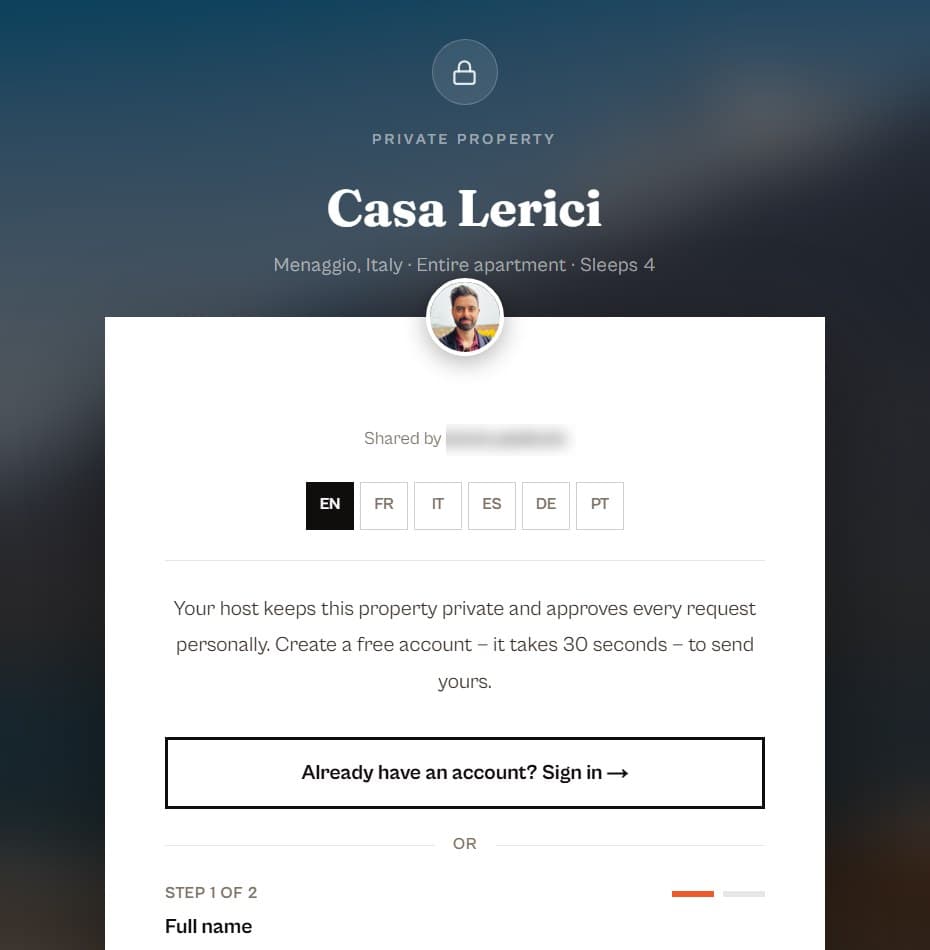
They type their name and email and tell you how they know you. If you're on manual approval, you get a notification and decide. Once you say yes, they see everything: the photos, the calendar, prices with a total for their dates, the FAQs, and buttons to message you or request a stay. You can also make the page public, so anyone with the link can look around, but they still need your OK to book. The difference is explained in publishing and visibility.
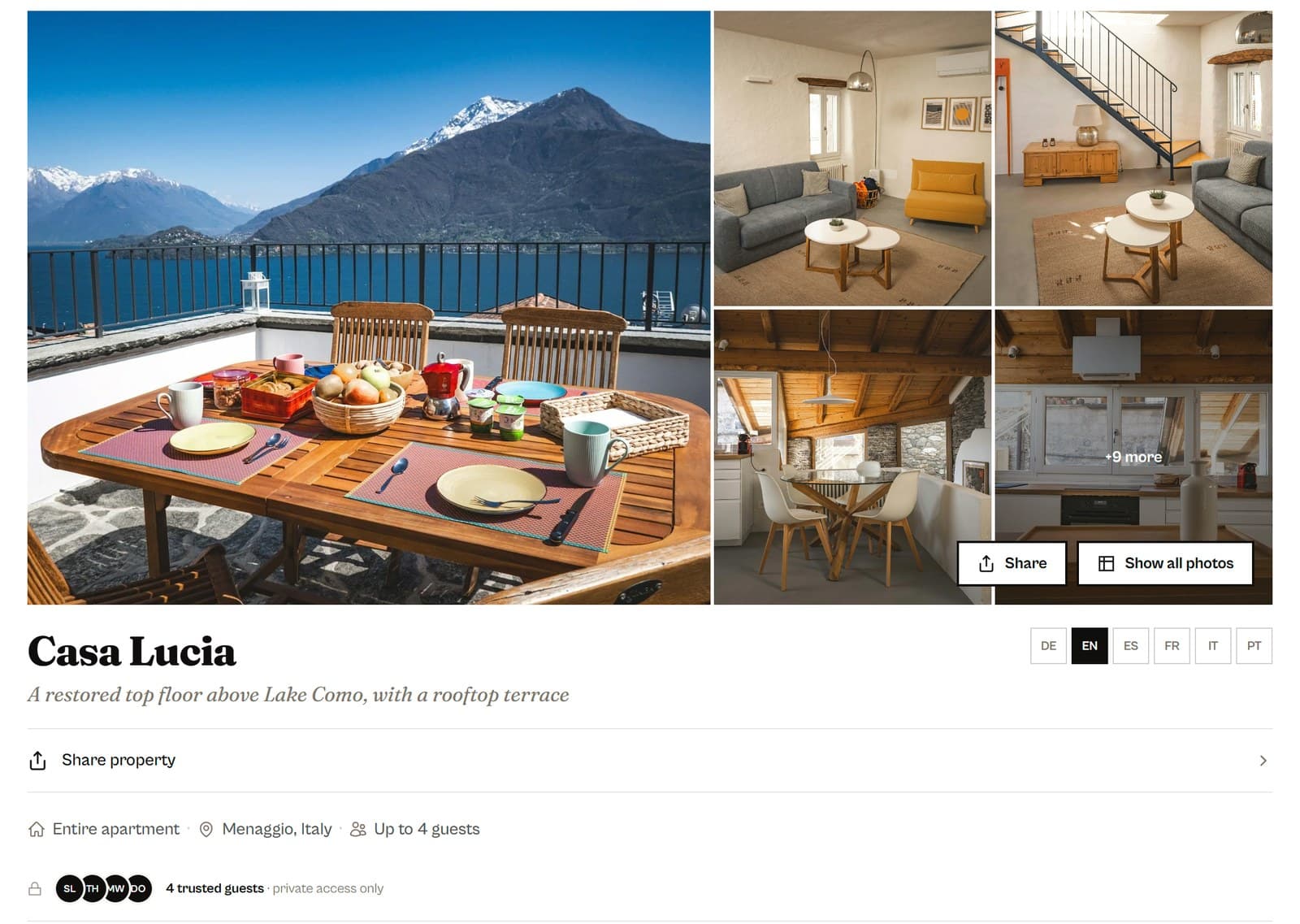
Want to click around a finished one yourself? Open the demo property.
What happens when someone asks to stay
They pick their dates and the number of guests, see the total, and send you a request. It's a request, not an instant booking, so you get the final say on every stay. When you approve it, the guest gets a confirmation with the address and your payment details, pays you directly, and you mark the booking as paid when the money lands. You can also set up arrival and departure instructions that go out by themselves before and after the stay (arrival and departure instructions).
Do you still need Airbnb?
Probably, and that's fine. Airbnb and Vrbo are great at finding you people you've never met. A private page is for the people you already know: past guests, friends, the family that's been coming every July for years. It gives them a proper place to book with you directly. Think of it as a second door, not a replacement. Plenty of owners keep their public listing for new guests and move everyone they know over to their own page.
One honest note: a private page won't bring you strangers from Google. That's kind of the whole idea. You decide who gets to see it.
The page is done. Now send the link
Building the page really is the easy bit. What makes it worth it is who you send it to. When we opened ours, nobody had to describe the flat or set up an introduction. People just forwarded the link, and our first booking came from a friend of a friend within a week.
So once yours is live, send it to the guests who've already asked to come back. Add it to your thank-you message after checkout. Send it to that friend who asks every year whether the place is free in August. If you want the field-by-field reference for everything above, it's in create your first listing. And the page is free for one property.
Give the guests you trust a private way to book
Build a private page for your property in minutes. Only the people you invite can see it and book, and every cent stays with you.
Free for one property. No card required.